Created a WordPress Website with a Relational Database from Terraform
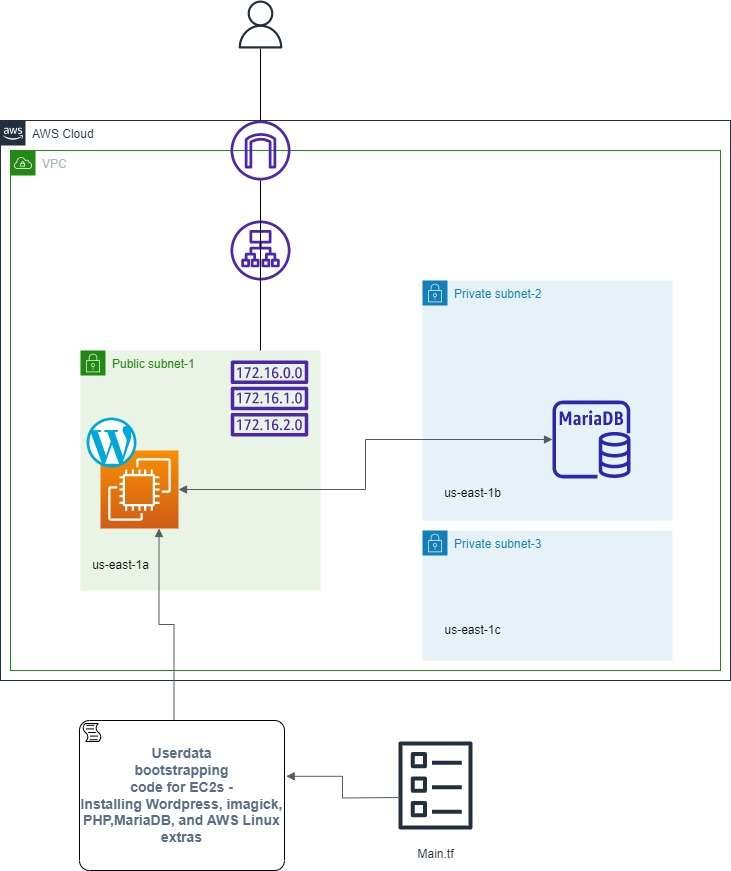
I received a request from management to create a base wordpress website instance on Terraform for easy future deployments including room for additional services like Elasticache, ASG groups, and other resources.
WordPress is a very dynamic content management system that is mostly deployed on a LAMP stack. For this project instead of deploying the application with MySQL, I used MariaDB which is an enhanced open source fork of MySQL. I used MariaDB simply because of its speed, security, and scalability which will more than compliment any future WordPress website project. The WordPress instance is behind an application load balancer for environment efficiency and scalability.
The Terraform template will deploy with bootstrapped userdata to create the LAMP stack with AWS Linux 2, PHP, Apache, MariaDB, WordPress, database configurations, and AWS Linux extras.
code
terraform {
  required_providers {
    aws = {
      source  = "hashicorp/aws"
      version = ">= 4.0"
    }
  }
}

# Define the provider
provider "aws" {
  region = "us-east-1"
}

# Define VPC
resource "aws_vpc" "prod-vpc" {
  cidr_block = "192.168.0.0/16"
  enable_dns_hostnames = true
  tags = {
    Name = "main-vpc"
  }
}

# Creating Public subnet!
resource "aws_subnet" "subnet1" {
  vpc_id            = aws_vpc.prod-vpc.id
  cidr_block        = "192.168.0.0/24"
  availability_zone = "us-east-1a"
  map_public_ip_on_launch = true
  tags = {
    Name = "Public Subnet1"
  }
}

# Creating Private subnet!
resource "aws_subnet" "subnet2" {
  vpc_id            = aws_vpc.prod-vpc.id
  cidr_block        = "192.168.1.0/24"
  availability_zone = "us-east-1b"
  tags = {
    Name = "Private Subnet1"
  }
}

# Creating 2nd Private subnet!
resource "aws_subnet" "subnet3" {
  vpc_id            = aws_vpc.prod-vpc.id
  cidr_block        = "192.168.2.0/24"
  availability_zone = "us-east-1c"
  tags = {
    Name = "Private Subnet2"
  }
}

resource "aws_db_subnet_group" "private" {
  name       = "main"
  subnet_ids = [aws_subnet.subnet2.id, aws_subnet.subnet3.id]

  tags = {
    Name = "My DB subnet group"
  }
}

# Creating an Internet Gateway for the VPC
resource "aws_internet_gateway" "Internet_Gateway" {
  vpc_id = aws_vpc.prod-vpc.id

  tags = {
    Name = "IG-Public-&-Private-VPC"
  }
}

# Creating an Route Table for the public subnet!
resource "aws_route_table" "Public-Subnet-RT" {
  vpc_id = aws_vpc.prod-vpc.id

  route {
    cidr_block = "0.0.0.0/0"
    gateway_id = aws_internet_gateway.Internet_Gateway.id
  }

  tags = {
    Name = "Route Table for Internet Gateway"
  }
}

# Creating a resource for the Route Table Association!
resource "aws_route_table_association" "RT-IG-Association" {
  subnet_id       = aws_subnet.subnet1.id
  route_table_id  = aws_route_table.Public-Subnet-RT.id
}

# Define the security group for the WordPress EC2 instance
resource "aws_security_group" "wordpress_sg" {
  name_prefix = "wordpress-sg-"

  vpc_id = aws_vpc.prod-vpc.id

  # Inbound traffic
  ingress {
    from_port   = 80
    to_port     = 80
    protocol    = "tcp"
    cidr_blocks = ["0.0.0.0/0"]
  }

  ingress {
    from_port   = 3306
    to_port     = 3306
    protocol    = "tcp"
    security_groups = [aws_security_group.mariadb_sg.id]
  }

  # Outbound traffic
  egress {
    from_port   = 0
    to_port     = 0
    protocol    = "-1"
    cidr_blocks = ["0.0.0.0/0"]
  }
}

# Define the security group for the MariaDB RDS instance
resource "aws_security_group" "mariadb_sg" {
  name_prefix = "mariadb-sg-"

  vpc_id = aws_vpc.prod-vpc.id

  # Inbound traffic
  ingress {
    from_port   = 3306
    to_port     = 3306
    protocol    = "tcp"
    security_groups = [aws_security_group.wordpress_sg.id]
  }

  # Outbound traffic
  egress {
    from_port   = 0
    to_port     = 0
    protocol    = "-1"
    cidr_blocks = ["0.0.0.0/0"]
  }
}

# Define the EC2 instance for WordPress
resource "aws_instance" "wordpress" {
  ami           = "ami-xxxxxxxxxxxxxxx" # Replace with the desired AMI ID with AWS Linux 2 for LAMP stack
  instance_type = "t2.micro"            # The instance type to use, e.g., t2.micro

  subnet_id     = aws_subnet.subnet1.id  # Place the EC2 instance in the public subnet

  # Associate the security group with the EC2 instance
  vpc_security_group_ids = [aws_security_group.wordpress_sg.id]

  user_data = data.template_cloudinit_config.user_data.rendered

  tags = {
    Name = "WordPress-Instance"
  }
}
# Define the RDS instance
resource "aws_db_instance" "wordpressdb" {
  allocated_storage      = 20
  engine                 = "mysql"
  engine_version         = "5.7"
  instance_class         = "db.t2.micro"
  db_name                = "mydb"
  username               = "myuser"
  password               = "mypassword"
  db_subnet_group_name   = aws_db_subnet_group.private.id
  vpc_security_group_ids = [aws_security_group.mariadb_sg.id]

  tags = {
    Name = "MySQL"
  }
}
# Define the Application Load Balancer
resource "aws_lb" "wordpress_alb" {
  name               = "wordpress-alb"
  internal           = false
  load_balancer_type = "application"

  subnets         = [aws_subnet.subnet1.id, aws_subnet.subnet2.id, aws_subnet.subnet3.id]
  security_groups = [aws_security_group.wordpress_sg.id]

  tags = {
    Name = "wordpress-alb"
  }
}

# Define the ALB Target Group for the EC2 instances
resource "aws_lb_target_group" "wordpress_target_group" {
  name     = "wordpress-target-group"
  port     = 80
  protocol = "HTTP"
  vpc_id   = aws_vpc.prod-vpc.id

  health_check {
    path                = "/"
    protocol            = "HTTP"
    interval            = 30
    timeout             = 5
    healthy_threshold   = 2
    unhealthy_threshold = 2
  }
}

# Associate the EC2 instances with the ALB Target Group
resource "aws_lb_target_group_attachment" "wordpress_target_attachment" {
  target_group_arn = aws_lb_target_group.wordpress_target_group.arn
  target_id        = aws_instance.wordpress.id
  port             = 80
}

# Define the ALB Listener to forward traffic to the Target Group
resource "aws_lb_listener" "wordpress_listener" {
  load_balancer_arn = aws_lb.wordpress_alb.arn
  port              = "80"
  protocol          = "HTTP"

  default_action {
    type             = "forward"
    target_group_arn = aws_lb_target_group.wordpress_target_group.arn
  }
}

# Variables section
variable "database_user" {
  description = "Username for the WordPress database"
  default     = "myuser"
}

variable "database_password" {
  description = "Password for the WordPress database"
  default     = "mypassword"
}

variable "database_name" {
  description = "Name of the WordPress database"
  default     = "mydb"
}

# Combine Terraform template and userdata script
data "template_cloudinit_config" "user_data" {
  gzip          = true
  base64_encode = true

  part {
    content_type = "text/x-shellscript"
    content      = <<-EOF
      #!/bin/bash
      db_username=${var.database_user}
      db_user_password=${var.database_password}
      db_name=${var.database_name}
      db_RDS=${aws_db_instance.wordpressdb.endpoint}

      # Install LAMP Server
      yum update -y
      yum install -y httpd
      yum install -y mysql

      # Enable PHP 7.xx from Amazon Linux Extra and install it
      amazon-linux-extras enable php7.4
      yum clean metadata
      yum install -y php php-{pear,cgi,common,curl,mbstring,gd,mysqlnd,gettext,bcmath,json,xml,fpm,intl,zip,imap,devel}

      # Install Imagick extension
      yum -y install gcc ImageMagick ImageMagick-devel ImageMagick-perl
      pecl install imagick
      chmod 755 /usr/lib64/php/modules/imagick.so
      cat <>/etc/php.d/20-imagick.ini

      extension=imagick

      EOI

      systemctl restart php-fpm.service
      systemctl start  httpd

      # Change OWNER and permission of directory /var/www
      usermod -a -G apache ec2-user
      chown -R ec2-user:apache /var/www
      find /var/www -type d -exec chmod 2775 {} \;
      find /var/www -type f -exec chmod 0664 {} \;

      yum -y install mariadb-server
      service mariadb start

      # Install WordPress using WP CLI
      curl -O https://raw.githubusercontent.com/wp-cli/builds/gh-pages/phar/wp-cli.phar
      chmod +x wp-cli.phar
      mv wp-cli.phar /usr/local/bin/wp
      wp core download --path=/var/www/html --allow-root
      wp config create --dbname=$db_name --dbuser=$db_username --dbpass=$db_user_password --dbhost=$db_RDS --path=/var/www/html --allow-root --extra-php </,/<\/Directory>/ s/AllowOverride None/AllowOverride all/' /etc/httpd/conf/httpd.conf

      # Make Apache autostart and restart Apache
      systemctl enable httpd.service
      systemctl restart httpd.service

      echo "WordPress Installed"
    EOF
  }
}
Ralph Quick Cloud Engineer
Ralph Quick is a professional Cloud Engineer specializing in the management, maintenance, and deployment of web service applications and infrastructure for operations. His experience ensures services are running efficiently and securely meeting the needs of your organization or clients.